


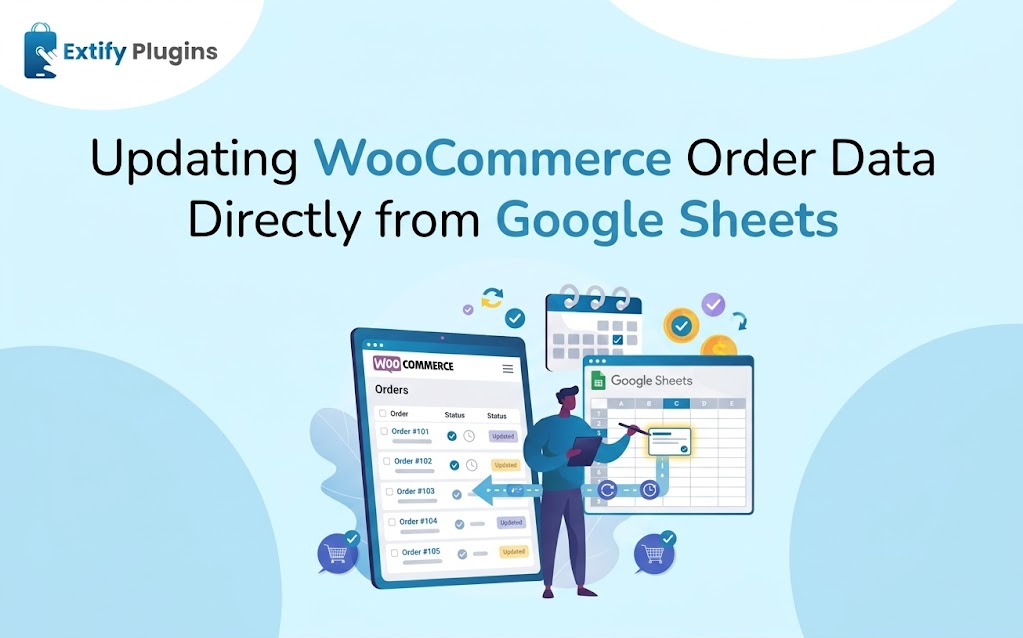
Running a WooCommerce store means living in two places at once: your WordPress dashboard and the spreadsheet your team actually works in. Orders get exported, edited, and re-imported, and the file you are looking at is outdated the moment you download it.
With the Google Sheet Connector for WooCommerce, you can skip that loop. Orders flow into Google Sheets automatically, and with Two-Way Sync turned on, edits you make in the sheet can be pulled back into WooCommerce with one click. This guide walks through exactly how to update WooCommerce order data directly from Google Sheets.
What is two-way sync?
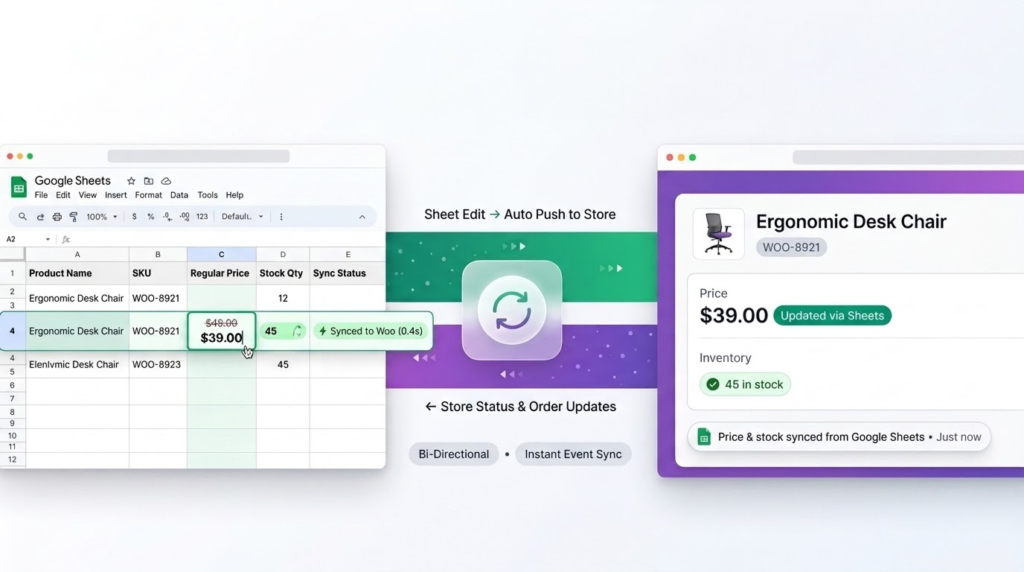
Most spreadsheet integrations are one-way: data goes from your store to the sheet, and that is the end of it. Two-way sync adds the return trip. You change a value in Google Sheets, then sync it back so WooCommerce reflects the change.
Google Sheet Connector, built by Extify Plugins, supports this for both orders and products:
- Orders: push every order to a sheet in real time or on a schedule, then pull order changes back from the sheet.
- Products: sync price, stock, and product status, and pull changes back the same way.
Two-way sync is a setting you enable yourself, and changes only flow back to WooCommerce when you run the pull action, so you stay in control of when a spreadsheet is allowed to change your store data.
Before you start
You need three things in place before you can edit orders from a sheet:
- The plugin installed on a store running WordPress 6.0+ and WooCommerce 7.0+ (PHP 7.0 or higher).
- A Google connection. You create a Google Cloud project, enable the Google Sheets API, generate an OAuth Client ID and Client Secret, and add your Gmail address as a test user. Google may ask for a billing card during this process, even if you stay within the free quota.
- A Google Sheet to sync into. Copy its Sheet ID (the text between
/d/and/editin the sheet’s URL) into the plugin settings.
The full walkthrough, with screenshots for every step, is in the plugin documentation. Google’s APIs can take up to five minutes to activate, so if the connection fails the first time, wait and try again.
Once you click Connect to Google under Connection Status, you will see actions to verify sheet access, rename the sheet, clear its data, and open it in Google Sheets.
How to update WooCommerce orders from Google Sheets
Once your store is connected, the workflow takes four steps.
Step 1: Enable Two-Way Sync
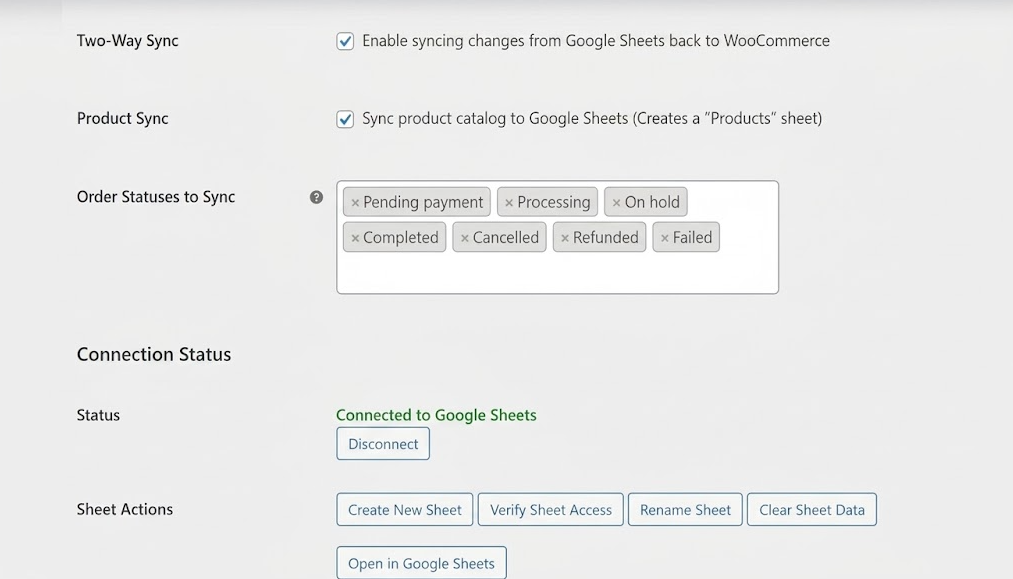
Go to WooCommerce > Settings > Google Sheets. On the General tab, turn on Two-Way Sync. While you are here, review the other options that shape how your sheet behaves:
- Real-time Sync updates the sheet whenever an order status changes.
- Scheduled Sync runs every 15 minutes, hourly, twice daily, or daily.
- Separate Sheets per Status creates a tab for each order status.
- Order Statuses to Sync lets you choose which statuses are included.
Step 2: Sync your orders to the sheet
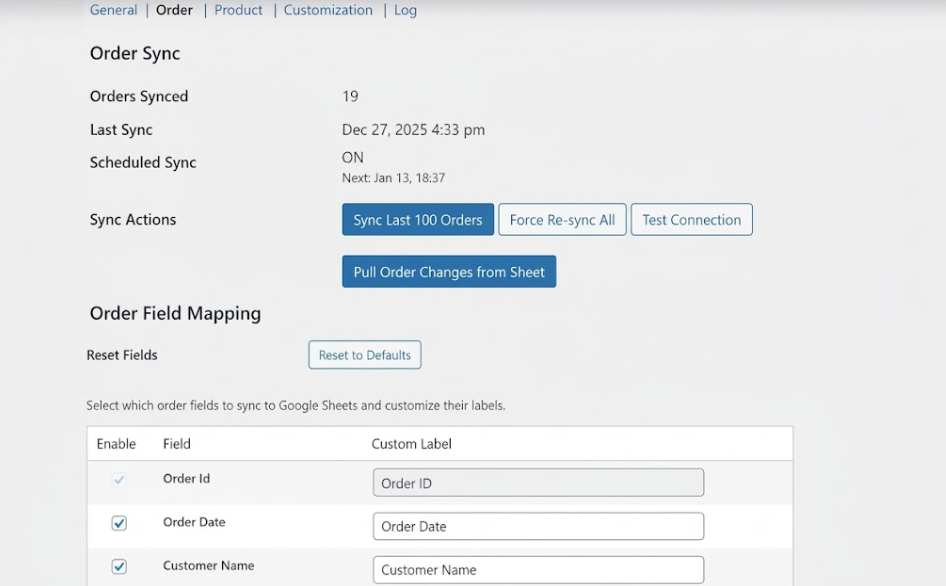
Open the Order tab. You will see how many orders were synced, when the last sync ran, and when the next one is scheduled. Use the sync actions to get your data into Google Sheets:
- Sync Last 100 Orders pushes your most recent orders.
- Force Re-sync All re-syncs every order, regardless of previous sync status.
- Test Connection confirms WooCommerce and Google Sheets can talk to each other.
Step 3: Edit the order data in Google Sheets
Open your sheet with Open in Google Sheets and make your changes in the relevant rows. Orders are matched by Order ID, so keep that column intact. Columns you renamed through field mapping appear under your custom labels.
Step 4: Pull the changes into WooCommerce
Back in WooCommerce > Settings > Google Sheets > Order, click Pull Order Changes from Sheet. The plugin imports your updates into WooCommerce. This button only works when Two-Way Sync is enabled on the General tab.
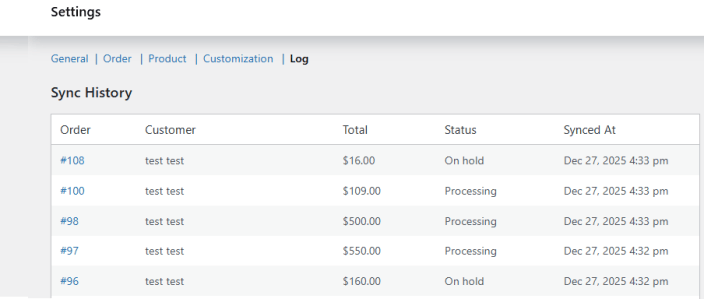
The Log tab then lists each synced order with its customer, total, status, and sync time, so you have a record of what ran.
Updating products the same way
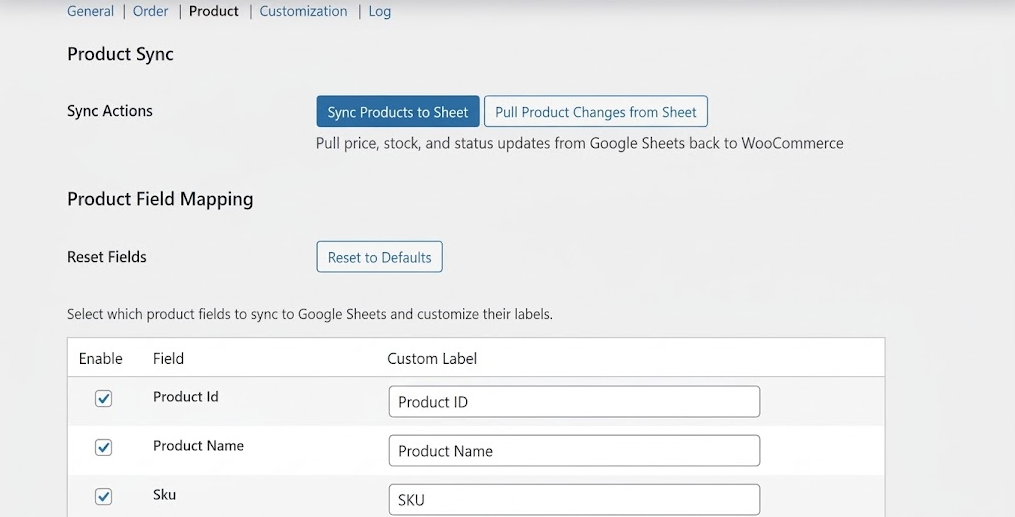
The Product tab works identically. Use Sync Products to Sheet to send your catalog to a dedicated Products sheet, edit price, stock quantity, or status in the sheet, then click Pull Product Changes from Sheet.
Where this saves you time
- Fulfillment teams can work through a shared sheet, with rows color-coded by order status, instead of opening each order in WordPress.
- Warehouse and inventory managers can review stock and prices in one view, adjust them in the Products sheet, and pull the changes into the store.
- Accounting and finance teams get totals, tax, shipping, discounts, and payment methods in a format they already use.
- Store owners get one place to review and correct data without bouncing between dashboards.
Best practices
- Test on a few orders first. Make a small edit, pull it, and confirm the result in WooCommerce before relying on the workflow.
- Leave the Order ID column alone. Orders are mapped to sheet rows by Order ID.
- Pull deliberately. Changes only reach WooCommerce when you click the pull action, so review the sheet before you do.
- Never clear a sheet casually. Clear Sheet Data permanently deletes the sheet’s contents and cannot be undone. You would need to sync again.
- Reset Fields with care. It removes your custom field selections and labels and restores the defaults.
- Limit who can edit the sheet. Anyone with edit access can change data that you may later pull into your store, so share it only with people you trust.
Troubleshooting
- Pull Order Changes from Sheet does nothing. Confirm Two-Way Sync is enabled on the General tab, since the pull actions require it.
- Google will not connect. The Google APIs can take up to five minutes to activate after setup. Wait and retry. Also confirm the Gmail account you connect with is added as a test user, and clear your site cache if caching is enabled.
- Orders missing from the sheet. Check which statuses are selected under Order Statuses to Sync, then run Sync Last 100 Orders or Force Re-sync All.
- Not sure the connection works. Use Test Connection on the Order tab or Verify Sheet Access in the General tab.
Final thoughts
Editing WooCommerce data from Google Sheets removes the export, edit, import cycle and gives your team a familiar place to work. Turn on Two-Way Sync, sync your orders, make your changes in the sheet, and pull them back with one click.
Google Sheet Connector for WooCommerce is available on the WooCommerce Marketplace at $49 per year, with a 30-day money-back guarantee. For full setup steps, see the official documentation.